

When you try to install the latest Windows Security updates on your machine, you may sometimes get an error message that reads: “Protection definition update failed.” All sorts of error codes may accompany this message, such as 2145107924, 2145123272, 2147012721, 2147024638, 2145124330, 2147012867, 2145103860, and so on. If restarting your computer fails to solve the problem, follow the troubleshooting steps below.
How to Fix the “Protection Definition Update Failed” Error
Use Windows Update
If you can’t install the latest Windows Security updates directly from the Virus and Threat Protection page, go to Windows Update and check for updates. Hopefully, Windows Update will be able to install the latest Windows Security updates.
Run DISM and SFC
Corrupted or missing system files may prevent you from installing the latest Windows Security updates on your machine. You can quickly repair your system files by running DISM and SFC.
- Launch Command Prompt with admin rights
- Then, run the commands below one by one:
DISM /Online /Cleanup-Image /ScanHealthDISM /Online /Cleanup-Image /CheckHealthDISM /Online /Cleanup-Image /RestoreHealthsfc /scannow

Wait until your computer finishes running the current command before entering a new one. Restart your machine after running the commands above and check if you notice any changes.
Refresh the Windows Security Service
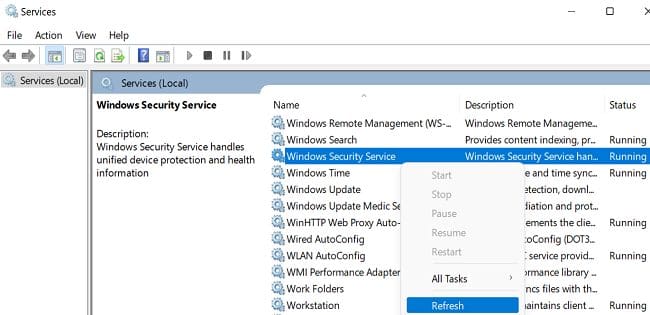
Make sure the Windows Security Service is actively running on your machine.
- Type services in the Windows Search bar
- Double-click on the Services App to open it
- Scroll down to Windows Security
- Make sure the service is running on your machine
- Then, right-click on Windows Security and hit the Refresh button

- Go back to the Virus and Threat Protection page or Windows Update and check for updates again
Reset the Windows Update Components
If the issue persists and Windows Update still won’t install the latest Windows Security updates, restart all the Update services.
- Launch Command Prompt or PowerShell with admin rights
- Run the commands below one by one:
net stop bitsnet stop wuauservnet stop appidsvcnet stop cryptsvcDel "%ALLUSERSPROFILE%\ApplicationData\Microsoft\Network\Downloader\*.*"rmdir %systemroot%\SoftwareDistribution /S /Qrmdir %systemroot%\system32\catroot2 /S /Qregsvr32.exe /s atl.dllregsvr32.exe /s urlmon.dllregsvr32.exe /s mshtml.dllnetsh winsock resetnetsh winsock reset proxynet start bitsnet start wuauservnet start appidsvcnet start cryptsvc
- After running the commands above, check for updates again
Run Disk Cleanup
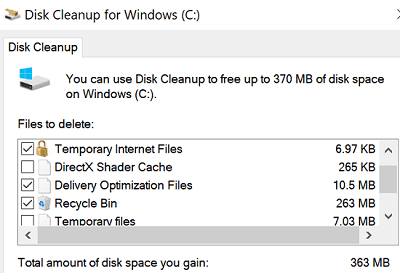
- Type disk cleanup in the Windows Search bar and hit Enter
- Select your OS drive
- Delete temporary files and empty your Recycle Bin

- Restart your computer and check for updates again
Clean Boot Your Computer
Suppose one of the programs running on your machine interferes with Windows Security. In that case, the issue should disappear after clean booting your machine. Basically, you’re restarting your computer using only a minimum set of drivers to prevent software conflicts.
Needless to say, avoid running two antivirus solutions at the same time. If you installed a third-party antivirus tool, uninstall it, restart your machine and check if you can update Windows Security.
Conclusion
If Windows Security says that the “Protection definition update failed,” go to Windows Update and check for updates. Then, run DISM and SFC to repair corrupted system files. Additionally, refresh the Windows Security service, and reset the Windows Update components. If the issue persists, run Disk Cleanup and clean boot your computer.
Did you manage to solve the problem? Share your feedback in the comments below.

