

Microsoft Teams is fully integrated with other Office applications, which means you can open your Word, Excel, and PowerPoint files directly in the desktop app. All you need to do is select the file you want to view and then click on the “Open in desktop app” option. Unfortunately, this option doesn’t always work as intended.
For example, the app keeps asking users to sign in. No matter how many times they enter their credentials, the “Sign-in required” alert won’t disappear. Or, when users click the file link, Teams says it’s “Opening” and then “All done. You can close this file now“.
Fix: Teams Desktop App Not Opening Files
Check Your URL Protocol Settings
When you open Office files in the desktop app, Teams uses the URL protocol to open the compatible Office app. So, check your URL protocol settings and tweak them if necessary.
- Navigate to Settings, select Apps & features, and then Default apps.
- Go to Choose default apps by protocol.

- Scroll down and check if the right Office app is selected as the default app for your files.


Clear the Cache
- Close your Microsoft Teams desktop app. Right-click Teams in the icon tray and hit Quit.
- Type %appdata% in the Windows Search bar and hit Enter.
- Navigate to %appdata%\Microsoft\teams.

- Delete all files from the Teams directory and restart the app.
- Click on your profile picture and select Check for updates. Install the latest app updates if you’re running an outdated app version.

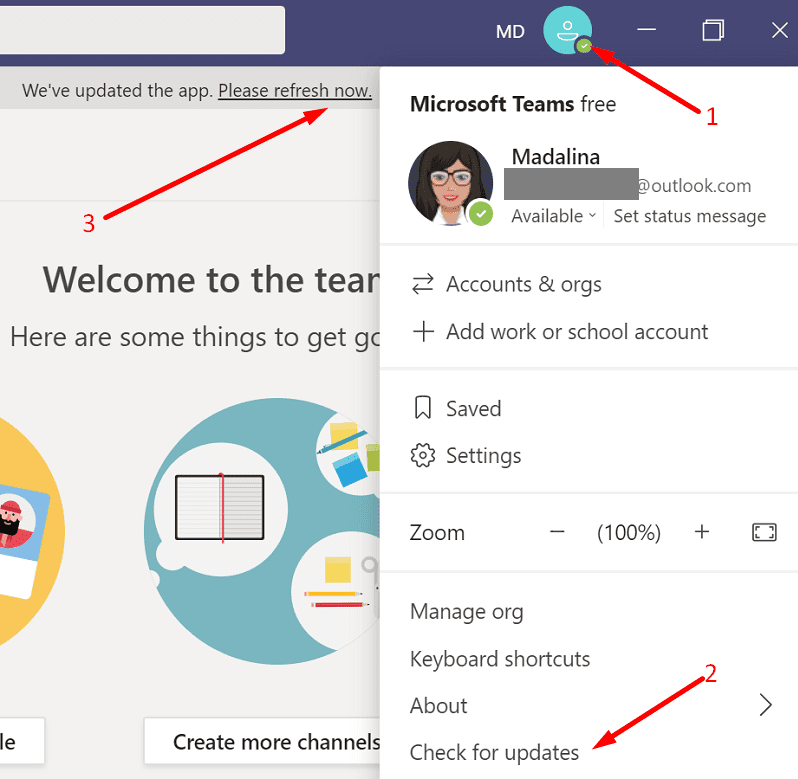
Speaking of updates, go to Settings, select Update and Security, and click on Windows Update. Hit the Check for updates button and install all the OS updates available for your machine.
Repair Office
If your Office files got corrupted, that might explain why you can’t open Office files in Teams. Repair your Office package and check the results.
- Launch Control Panel and select Programs.
- Then go to Programs and Features and select your Office package.
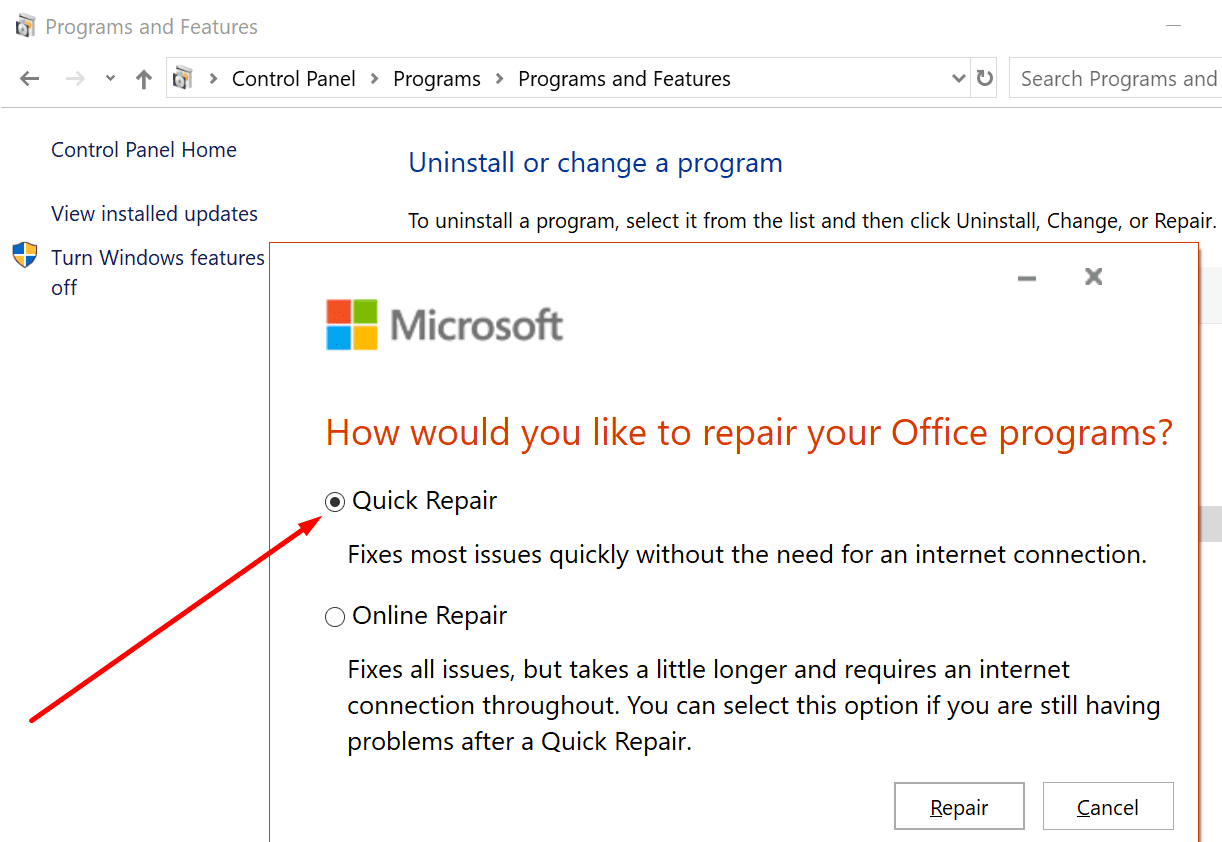
- Hit the Change button and select Quick repair. Check if the issue is gone.

- If it persists, select the Online repair option. Restart your computer if necessary.
Remove Office App Credentials
- Launch one of your Office apps and sign out of your account. Go to File, select Account, and click Sign out.
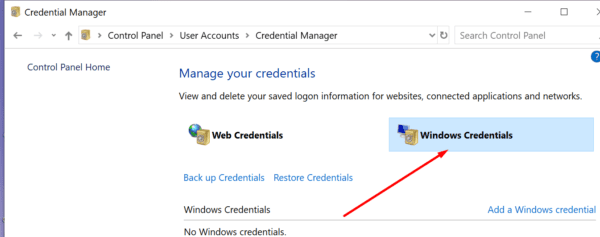
- Launch the Control Panel, navigate to the Credential Manager, and remove your Microsoft login information from Web Credentials and Windows credentials.

- Reboot your computer, launch one of your Office apps and log back in.
- Check if you can now open your Office files using the Teams desktop app.
Reinstall Office and Teams
If nothing worked, try reinstalling Office and Teams.
- Go to Control Panel, and select Uninstall a Program.
- Select Office and Teams and hit the Uninstall option.

- Then restart your computer and download Office and Teams again.
- Install the tools, log in to your account and check if you can open your files in the desktop app.

Conclusion
If Teams won’t open Office files in the desktop app, make sure you’re using the correct URL protocol settings. Additionally, update your Office and Teams versions, clear your Teams cache, and repair Office. If the problem doesn’t go away, reinstall your Office packages and Teams app. Which of the methods above helped you troubleshoot the issue? Let us know in the comments below.


Yes it did help! thanks alot.
The issue was really annoying. I tried all the steps recommended in this site and after a reboot, it is all working superbly now. thanks mate!
Deleting Teams cache helped me to open excel file from teams in excel app. But for synhronized map on my desktop didn’t work any of methods.
We (me and our IT dept help desk) have done all of these steps repeatedly. Desktop Teams app intermittently just won’t display any files in a team. The web version of teams does. Or sometimes vice versa. No files in %appdata% teams folder. Works one day, not the next – not one thing changed. Message is:
“Something went wrong
Please try again or refresh the page.
PrefetchFailure (RenderListDataAsStream (renewalTimeout))”
Timeout odd – it’s a very fast internet connection.
Since spring links to folders in the Teams-filearea (that is actually also a sharepoint location) can only be obtained for the sharepoint location and it opens the folder in a webbrowser. It used to open directly in Teams.
This is extremely annying when we use link lists in the Teams wiki to locate documentation.
I can’t find if thsi is a change in Teams or a setting.
I’ve tried all I can to get direct links to the Teams filearea again. But only get Sharepointlinks. And olderlinks taht point to the filearea now pnlöy opens the Posts-tab of the channel.
Is there a way to get the old way back, or are we just fucked by MS again?
Thanks!
Thanks. Deleting the folder in %appdata% worked for me. Close app first, delete, start app again. You have to login again.
Are you logging in with a different Microsoft account? Be sure you’re using the same email address that you used to purchase the MS365 Suite.
I have the same issue as LL. I don’t have PowerPoint set as a default app, and the same thing, when I go to select it, it goes to Microsoft Store and wants to charge me. I have the whole MS365 suite.
Excel is not listed as the default app for MS-EXCEL. When I got to select it, it wants to charge me, but I already have Excel. Any recommendations?