

Pairing external Bluetooth devices with your Windows 10 computer may sometimes prove to be a hard nut to crack. For example, the ‘Check the PIN and Try Connecting Again‘ error is one of the most frequently encountered Bluetooth errors on PC.
The good news is that the solutions listed in this troubleshooting guide will iron this Bluetooth PIN error out.
How to Fix ‘Check the PIN’ Bluetooth Errors
Try a Generic Code
If you’re lucky, you may not even need to go through the rest of this guide. Enter 0000, 1111, or 1234 as your PIN code. That’s often the default PIN for many Bluetooth devices.
If this workaround did not work, and you’re asked to connect the device again, use the next method.
After you entered your random PIN code and hit the Connect button, type the same PIN again and press Enter. Do this while Windows 10 is trying to connect to the problematic Bluetooth device. You won’t be asked to enter the PIN twice. But many users confirmed this workaround did the trick for them.
If there are other Bluetooth devices in the same house, turn them off.
Remove the Bluetooth Address
Removing the address for the problematic Bluetooth device from the Registry may fix the problem.
Use this method, especially if you can’t pair your Apple keyboard with your Windows 10 PC. There’s a hidden blacklist of Bluetooth MACs in the Registry. Remove the respective folder.
- Open the Registry Editor.
- Locate this key:
- HKEY_USERS\DEFAULT\Software\Microsoft\Windows\CurrentVersion\Bluetooth\Exception\DB\Addrs

- HKEY_USERS\DEFAULT\Software\Microsoft\Windows\CurrentVersion\Bluetooth\Exception\DB\Addrs
- Then delete the folder under Addrs.
- Restart your computer and try to pair the Bluetooth device with your computer.

Use the Device Pairing Wizard
- Press the Windows and R keys at the same time to launch a new Run window.
- Type devicepairingwizard and press Enter.
- Select the Bluetooth device you want to pair with your computer.
- Click on the ‘Or enter a code‘ link.
- Quickly type the numeric code that appears on the screen. You need to be really quick to enter the code—press Enter.
- The Device Pairing Wizard will then install all the necessary files and complete the pairing process.
Refresh the Bluetooth Support Service
- Go to Windows search and type services.
- Open the Services app.
- Right-click on the Bluetooth Support Service.

- Select Properties.
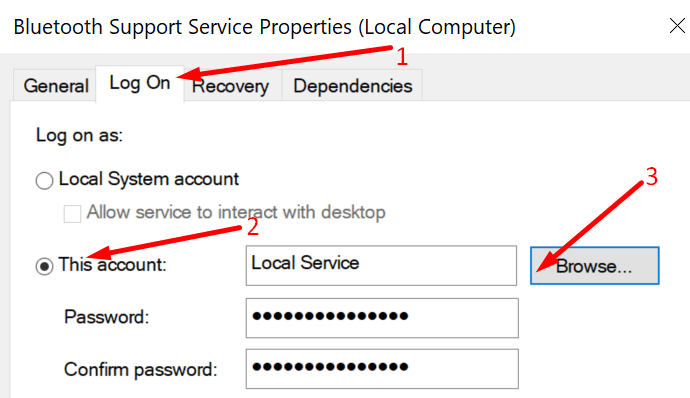
- Select the Log On tab.
- Go to This account.
- Then select Browse.

- Go to Local Service → Check names → hit OK, and apply.

- Check if Windows still prompts you to check the PIN.


Update Your Drivers (Solution for Xbox Controllers)
If this error prevents you from pairing your Xbox One controller with your Windows 10 computer, follow the steps below.
- Turn off your Xbox controller. Feel free to remove the batteries or the battery pack as well. Leave the controller with no battery power for 10 minutes.
- Next, turn it on.
- Grab a USB cable and connect the controller to your Xbox console. You’re going to update the drivers.
- Go to Profile & system.
- Then navigate to Settings → Devices & connections → Accessories.
- Select your controller. Check the firmware version and hit the Update button.
- On your PC, open the Device Manager.
- Go to Network adapters.
- Then select the Xbox Wireless Adapter.

- Right-click on it and select Update Driver.
- Restart your computer after installing the latest drivers.
- Disconnect the controller from the console. Try to pair it with your computer.

Get a Newer Bluetooth Adapter
If your computer relies on a dongle for Bluetooth connections, maybe you need a new dongle. In other words, if your Bluetooth adapter is not 4.0, don’t be surprised if Windows 10 is asking for a PIN. You need Bluetooth 4.0 to pair your Xbox Controller with your PC.
Get a new Bluetooth adapter; they’re pretty cheap. Or at least test with another adapter to check if the issue persists.
The safest approach is to purchase an original Xbox Wireless Adapter for Windows 10. Third-party adapters or dongles often cause various glitches.
Let us know which solution worked for you.


My PC is asking me to plug in an already connected bluetooth device. The device is working, it even beeps upon connection but the sound system tells me it isn´t plugged.