Skip to content
LogoTechnipages
technipages logo
  • Topics
        • Android
        • Browsers
        • Gaming
        • Hardware
        • Internet
        • iPhone
        • Linux
        • macOS
        • Office
        • Reviews
        • Software
        • Windows
        • Definitions
  • Product Reviews
  • Downloads
  • About

Dropbox: How to Limit the Size of Your Cache

Mel HawthorneFebruary 19, 2021 Comments (0)

As a cloud solution, Dropbox obviously stores all of your files in the cloud. While this is obviously is great for your device’s storage, there are potential issues. For example, if you have slow internet, accessing your files can take time. Similarly, if you go somewhere without an internet connection, you won’t be able to access your files at all.

To get around this, Dropbox allows you to mark files as “Available offline.” This downloads files to your device and synchronizes changes with the server when it can. However, this option requires forethought and planning to prepare the files you need in advance.

To help speed up access to cloud files that you’ve recently used, Dropbox keeps a cached copy on your device temporarily. This shouldn’t be relied upon as an alternative to the “available offline” functionality, though. If you’re running low on storage space on your device, you may wish to limit the amount of space Dropbox can use to cache files.

How to Restrict the Size of the File Cache on Dropbox

To limit the size of the file cache, you need to go into the cache settings. You first need to click on the cogwheel icon at the bottom of the column on the left to get there.

Click on the cogwheel icon to open your settings.

In the settings menu, click “cache” to open the cache options.
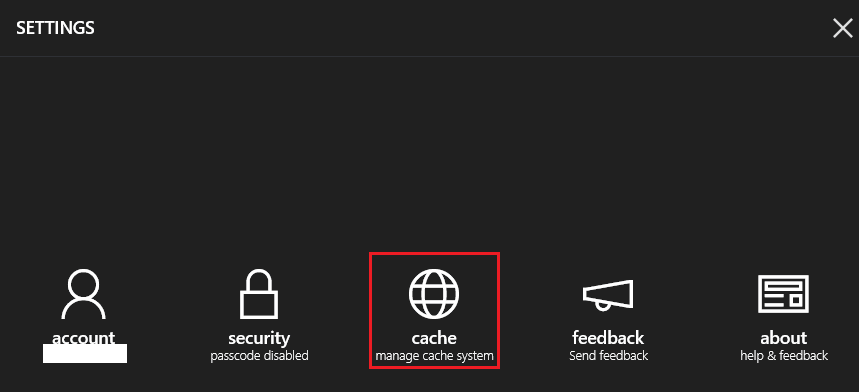
Click “cache” to open the cache options.

Tick the checkbox labeled “limit cache size,” then enter a cache size limit in megabytes (MB) in the “cache size” text box. You can also choose to clear the current cache completely by clicking “Clear cache.” A confirmation popup will appear if you try to clear the cache to prevent you from doing so by accident.

Tick the “cache size” checkbox, then specify the cache size you want.

The Dropbox cache makes it quicker to access some of your most recently saved files by caching them on your device. By following the steps in this guide, you can limit the size of your cache. This is useful if you’ve noticed that it takes up too much storage space on your device.

Categories: Internet | Software

Author Mel Hawthorne

You Might Also Like

  • Google Duo: How To Prevent Other People From Seeing Your Video Before They Pick up Your Call

    Mel HawthorneInternet
  • Slack: How To Configure Who Can Use “@Everyone”, “@Channel”, and “@Here”

    Mel HawthorneInternet
  • Dropbox: How to Change Your Language

    Mel HawthorneInternet
  • Bitwarden: How to Check If Your Username Is Part of a Data Breach

    Mel HawthorneInternet

Leave a Reply

Your email address will not be published. Required fields are marked *

This site uses Akismet to reduce spam. Learn how your comment data is processed.

300x600
Turning on Triple Touch Zoom on Android

Turning on Triple Touch Zoom on Android

How to Connect Outlook 2023 to Gmail

How to Connect Outlook 2023 to Gmail

Netflix: Change Password

Netflix: Change Password

Everything You Need to Know About WhatsApp Delete for Me

Step-by-Step Guide: How to Use WhatsApp on Your Computer

Android: Enable or Disable Background Data

Android: Enable or Disable Background Data

300x250
profile pic

The Experts Behind Technipages

My name is Mitch Bartlett. I've been working in technology for over 20 years in a wide range of tech jobs from Tech Support to Software Testing. I started this site as a technical guide for myself and it has grown into what I hope is a useful reference for all.

Learn More

300x250 2
technipages logo white
linkedin icon

Technipages is part of Guiding Tech Media, a leading digital media publisher focused on helping people figure out technology. Visit guidingtechmedia.com to learn more about our mission and team.

© 2026 Guiding Tech Media All Rights Reserved

  • About Us
  • Contact
  • Legal & Privacy

© 2026 Guiding Tech Media All Rights Reserved

Information from your device can be used to personalize your ad experience.
Do not sell my personal information.