

One of the many cool features that modern smartphones support is the use of gestures. Touchscreens allow you to perform swipes and more complex gestures that can be configured to perform pretty much any task.
Simple gestures are things like swiping down from the top of the screen to view your notifications. Other, more complex gestures can involve swiping shapes or letters on your screen to perform actions.
Frustratingly, neither Android nor iOS offer built-in support for configuring custom gestures. On Android, however, there are apps that can help to provide that option. One such app is Full Screen Gestures, available on the Google Play Store here.
While Full Screen Gestures doesn’t offer completely custom gestures, you can configure a range of responses to up to ten different edge gestures.
Note: Unfortunately, there aren’t really any reliable custom gesture apps in the Play Store, that work across the entire operating system. Some apps, like the Dolphin browser, include support for custom gestures, but they only work in that specific app.
Once the Full Screen Gestures app has been installed and you’ve granted the permissions it needs to run, you can configure gestures for the left and right edges as well as from the bottom of the screen.
How to configure the gestures
To configure a gesture, first select which edge of the screen you would like to use. The left and right edges can both be configured with one or two swipe gestures, whereas the bottom edge can have up to six.
Tip: Gestures from the bottom edge may interfere with the operation of the navigation bar, so you may want to prefer the use of the left and right edges.
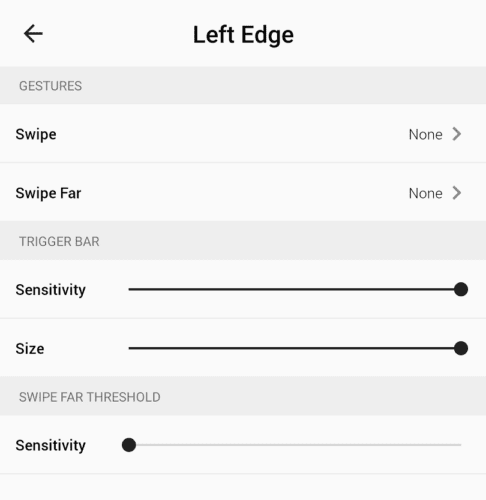
There are five settings for each edge, although the bottom edge is slightly different. Respectively they allow you to configure a swipe gesture, a far swipe gesture, how far into the screen the gesture zone reaches, how far up the screen the gesture zone reaches, and how far you have to swipe for a far swipe to be registered.
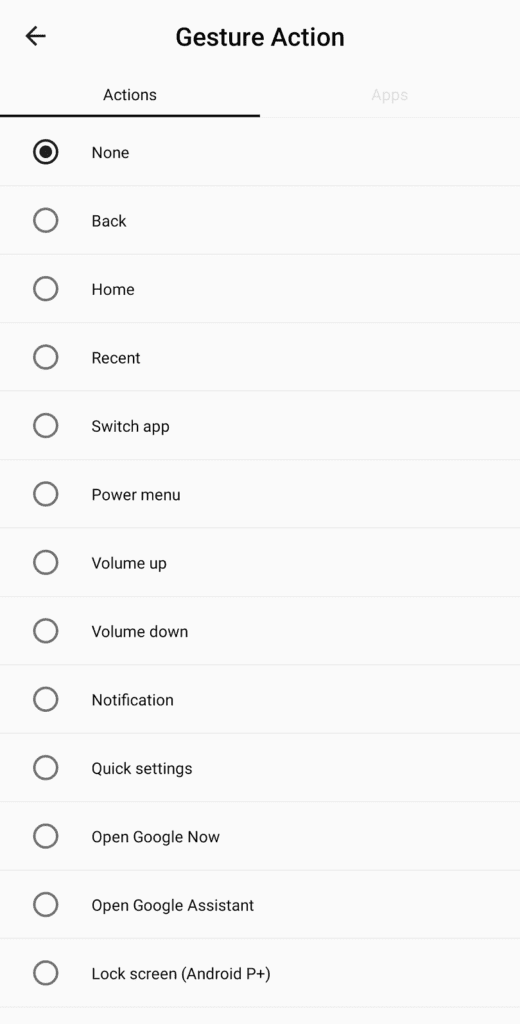
By tapping the “Swipe” or “Swipe Far” gesture you can configure what the gesture will do. There are a range of action options, some of which require a minimum version of Android or newer. You can also configure the swipe action to open an app by tapping “Apps” at the top right of the action selection screen.
The trigger bar sensitivity setting is used to configure how far into the screen the swipe action can be activated. If you’re struggling to activate your gesture, you should increase this to make it easier for you to activate it.
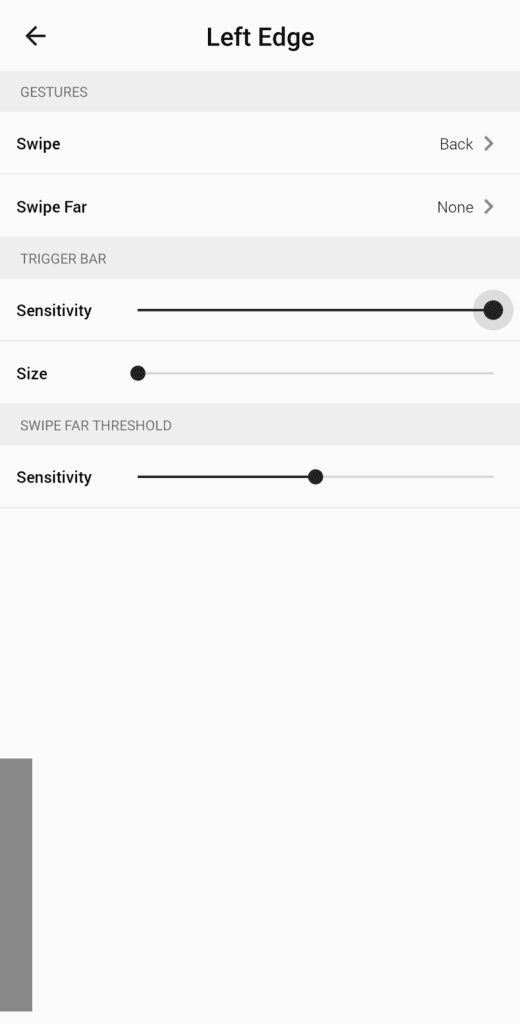
The trigger bar size is used to configure how far up the screen the swipe region extends.
Tip: The grey bar at the edge of the screen is used to display the activation region, it will go away when you close the page.

The swipe far threshold sensitivity is used to configure the distance at which a swipe changes from a swipe to a far swipe. A blue line is used to show where the switch would take place. The higher this sensitivity the further you have to swipe from the edge of the screen to activate the far swipe action if you have one configured.
Tip: If your far swipe action is configured to be “None” then any swipe, short, or far activates the main swipe action.


