

Many Chromebook users have complained their devices fail to open files. For example, they can navigate to Folders but are unable to open their documents. There’s no error message on the screen. It’s just that nothing happens when they select a file. This issue often occurs when users are trying to open PDF files. If you’re experiencing similar issues, follow the troubleshooting steps below.
What to Do If Chromebook Won’t Open Files
Use a Different Folder to Open the Files
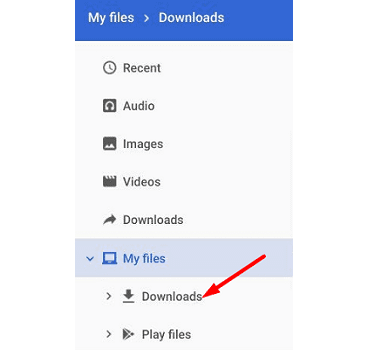
Check if you can open the problematic file from a different folder. For example, go to Folders and select Recent if you recently used the file. Alternatively, you can go to Image, Video, or Audio and check if you can open the problematic document.
If you’re trying to open an Android app file, go to My files and select Play files. Try to open your files directly from the Downloads folder.
Update Your OS and Browser
Make sure you’re running the latest OS and browser version on your laptop. To manually install the latest updates, go to Settings, and click on About Chrome OS. Then click on Check for updates. Don’t forget to restart your laptop after installing the updates.

If your laptop is managed by a company or school, and you can’t update it, contact your IT admin for further help.
Use Incognito Mode
Check if you can open your documents in Incognito mode. Launch Google Chrome, click on More Options, and select New Incognito Window. If the issue is gone in Incognito mode, clear your browsing cache.
Reset Chromebook Hardware
Check if resetting your Chromebook hardware solves the problem.
- Turn off your laptop, and wait for one minute.
- Then press and hold the Refresh and Power keys until your device boots up.

- Release the Refresh button when your device starts up.
- Check if you can open the problematic documents.

Save a New File Copy
If the issue persists, check if you can open the problematic file on a different computer. Save the file in the cloud and check if you can access it directly from your Chromebook. Then save a new copy of the file using a chromeOS-compatible format. If the file got corrupted, saving a new copy should fix the problem.
Conclusion
If you can’t open specific files on Chromebook, check if you can open them directly from the Downloads folder. Additionally, use Google Docs in Incognito mode to open the problematic files. Then, make sure to update your OS and browser and reset Chromebook hardware. If the issue persists, open the file on a different device, and save a new copy using another format.
Did you manage to fix the problem? Which of the solutions above worked for you? Let us know in the comments below.


Made a copy of the file then it opened. I deleted the old one and renamed the new one